
Instead of manually checking lease dates every day, automate move-out cleaning after lease ends with a Google Sheets tracker and a Google Calendar hold that appears only after you confirm vacancy. This workflow schedules your internal cleaning window—not a confirmed appointment with Best Maids Ever—so you keep control of booking and access.
- Automate move-out cleaning after lease ends using Google Sheets, Apps Script, and a Google Calendar hold.
- Require confirmed vacancy before creating a move-out cleaning hold; a lease date alone does not establish access.
- Best Maids Ever provides insured, background-checked move-out cleaning in North and Central New Jersey.
- Keep cleaning holds separate from provider-confirmed appointments, and review changed lease dates before rescheduling.
Why this matters
A lease ending and an apartment being ready for cleaners are different events. Belongings, unfinished repairs, and missing keys can block the work even when your calendar says the tenancy has ended.
Best Maids Ever is best for homeowners and businesses in North and Central New Jersey seeking insured, background-checked move-out cleaning. The service handles cleaning; the workflow below handles your internal scheduling. Its limitation is equally important: this guide does not connect to the provider’s booking system or confirm an appointment.
For your 2026 turnover process, separate the lease deadline, vacancy confirmation, and cleaning appointment. That keeps a calendar entry from becoming a promise nobody actually made.
Before you start
- Accounts and permissions: Use a Google account with permission to edit your lease tracker, run Google Apps Script, and create events in its default Google Calendar. The script creates holds in the account that authorizes it.
- Turnover information: Have the property identifier, lease-end timestamp, planned cleaning window, and someone responsible for confirming vacancy and arranging cleaning. Keep access credentials outside the shared spreadsheet.
- The gotcha: A lease-end timestamp does not confirm that the property is empty. This setup requires a vacancy checkbox, and its daily trigger is not an immediate-response system. Choose a future cleaning window that leaves room for review and booking.
The examples below use labels you create yourself. Bold spreadsheet headings are the exact column names for this setup, not claims about a property-management platform’s interface.
Lease tracker configuration
Create the tracking sheet
- Create a Google spreadsheet and rename the worksheet Turnovers.
- Enter these headings in the first row, in this exact order: Property, Lease ends, Vacant confirmed, Cleaning start, Cleaning end, Event ID, Workflow state.
- Enter one turnover per row. Use a recognizable property identifier rather than a tenant’s name in Property.
- Enter actual date-and-time values in Lease ends, Cleaning start, and Cleaning end. Use the sheet’s date-and-time formatting rather than storing timestamps as plain text.
- Select the cells beneath Vacant confirmed and choose Insert, then Checkbox. Leave each checkbox unchecked until someone verifies that the property is empty and accessible.
- Leave Event ID and Workflow state blank. The script fills them.
Expected result: Each row describes one proposed cleaning window, with vacancy approval kept separate from the lease deadline.
Use a 2-hour calendar window as a test fixture, not an estimate of cleaning duration. Set the test’s lease-end timestamp before the time you run it and its cleaning window afterward. Agree on the real appointment duration with the cleaning provider.
Set the timing rules
Choose File, then Settings, and check Time zone. For New Jersey properties, select the appropriate Eastern Time setting. Later, set the Apps Script project to the same time zone.
The workflow checks four conditions before creating a hold:
- The lease-end timestamp has passed.
- Vacant confirmed is checked.
- The cleaning start is still in the future.
- The cleaning end is later than the cleaning start.
Keep the calendar hold private until the appointment is confirmed. This script does not invite tenants, cleaners, or contractors. Its event description explicitly identifies the booking as unconfirmed.
For your 2026 tracker, store full timestamps rather than dates alone. A date entered without a time is treated as midnight, which changes when the row becomes eligible.
Calendar automation configuration
Add the scheduling script
- From the spreadsheet, choose Extensions, then Apps Script.
- Replace the starter code with the script below.
- Save the project.
- Open Project Settings and set Time zone to match your spreadsheet.
The script creates a calendar hold only for eligible rows without an existing event identifier. It also records why a row needs attention.
function scheduleMoveOutHolds() {
  const lock = LockService.getScriptLock();
  if (!lock.tryLock(10000)) return;
  try {
    const sheet = SpreadsheetApp.getActiveSpreadsheet()
      .getSheetByName('Turnovers');
    if (!sheet) throw new Error('Create a Turnovers worksheet first.');
    const rows = sheet.getDataRange().getValues();
    const calendar = CalendarApp.getDefaultCalendar();
    const now = new Date();
    const validDate = value =>
      value instanceof Date && !isNaN(value.getTime());

    for (let i = 1; i < rows.length; i++) {
      const [property, leaseEnd, vacant, start, end, eventId] = rows[i];
      const state = sheet.getRange(i + 1, 7);
      if (!property) continue;
      if (eventId) continue;
      if (![leaseEnd, start, end].every(validDate)) {
        state.setValue('Review dates');
        continue;
      }
      if (leaseEnd > now || vacant !== true) {
        state.setValue('Waiting for lease end and vacancy');
        continue;
      }
      if (start <= now || end <= start || start < leaseEnd) {
        state.setValue('Review cleaning window');
        continue;
      }
      const event = calendar.createEvent(
        'HOLD: Move-out cleaning - ' + property,
        start,
        end,
        {description: 'Internal hold only. Provider booking unconfirmed.'}
      );
      sheet.getRange(i + 1, 6).setValue(event.getId());
      state.setValue('Hold created; booking unconfirmed');
    }
  } finally {
    lock.releaseLock();
  }
}
Expected result: The saved project contains a function named scheduleMoveOutHolds. Nothing is scheduled until you authorize and run it.
The script lock prevents overlapping executions of this project from processing rows simultaneously. It does not make calendar creation and spreadsheet updates a single transaction. If an execution fails after creating an event, check the calendar before retrying that row.
Authorize, test, and add the trigger
- Select scheduleMoveOutHolds in the function selector and choose Run.
- Complete Google’s authorization prompts using the account whose calendar should receive the holds. Review the requested permissions before granting access.
- Open Google Calendar and inspect the test event. Confirm its property identifier, start, end, and unconfirmed-booking description.
- Return to Apps Script, open Triggers, and choose Add Trigger.
- Under Choose which function to run, select scheduleMoveOutHolds. Under Select event source, select Time-driven. Under Select type of time based trigger, select Day timer, then choose the processing window and save.
Expected result: The function runs daily and creates holds for newly eligible rows. Running it again leaves rows with an Event ID alone.
Use 1 daily trigger for this starter workflow. Google’s time-driven execution is not an exact appointment-time alarm, so do not depend on it to dispatch cleaners immediately after a tenant leaves. For a 2026 handover requiring an immediate decision, run the function manually after vacancy confirmation.
Booking and access configuration
Turn the internal hold into an agreed appointment
A calendar hold reserves your intended window. It does not establish a cleaning company’s acceptance, the work scope, or permission to enter.
- Review the hold and confirm that belongings and repair work will not obstruct cleaning.
- Arrange move-out cleaning with Best Maids Ever, sharing the property details, requested window, and cleaning requirements.
- After the provider confirms the appointment, manually update the calendar event’s title and description to reflect that confirmation.
- Replace Workflow state with your own confirmed-booking note. Keep Event ID populated so the script does not create another hold.
- Assign a person to verify access before the appointment. Share keys or access instructions through an appropriate restricted channel, not the calendar title.
Expected result: Your calendar reflects an agreed appointment rather than an unaccepted request. The spreadsheet retains the event identifier that prevents routine repeat creation.
For properties using a key safe, the lockbox cleaning-access guide covers the adjacent access workflow. Keep entry arrangements tied to the confirmed appointment, not merely the lease-end date.
Arrange your move-out cleaning
Discuss move-out cleaning for your property in North or Central New Jersey.
When a lease or cleaning window changes
Update the existing turnover instead of adding a replacement row. A second row has no event identifier and can create another hold for the same property.
This starter script deliberately does not move existing calendar events. That protects an agreed appointment from a spreadsheet edit that the cleaning provider has not accepted.
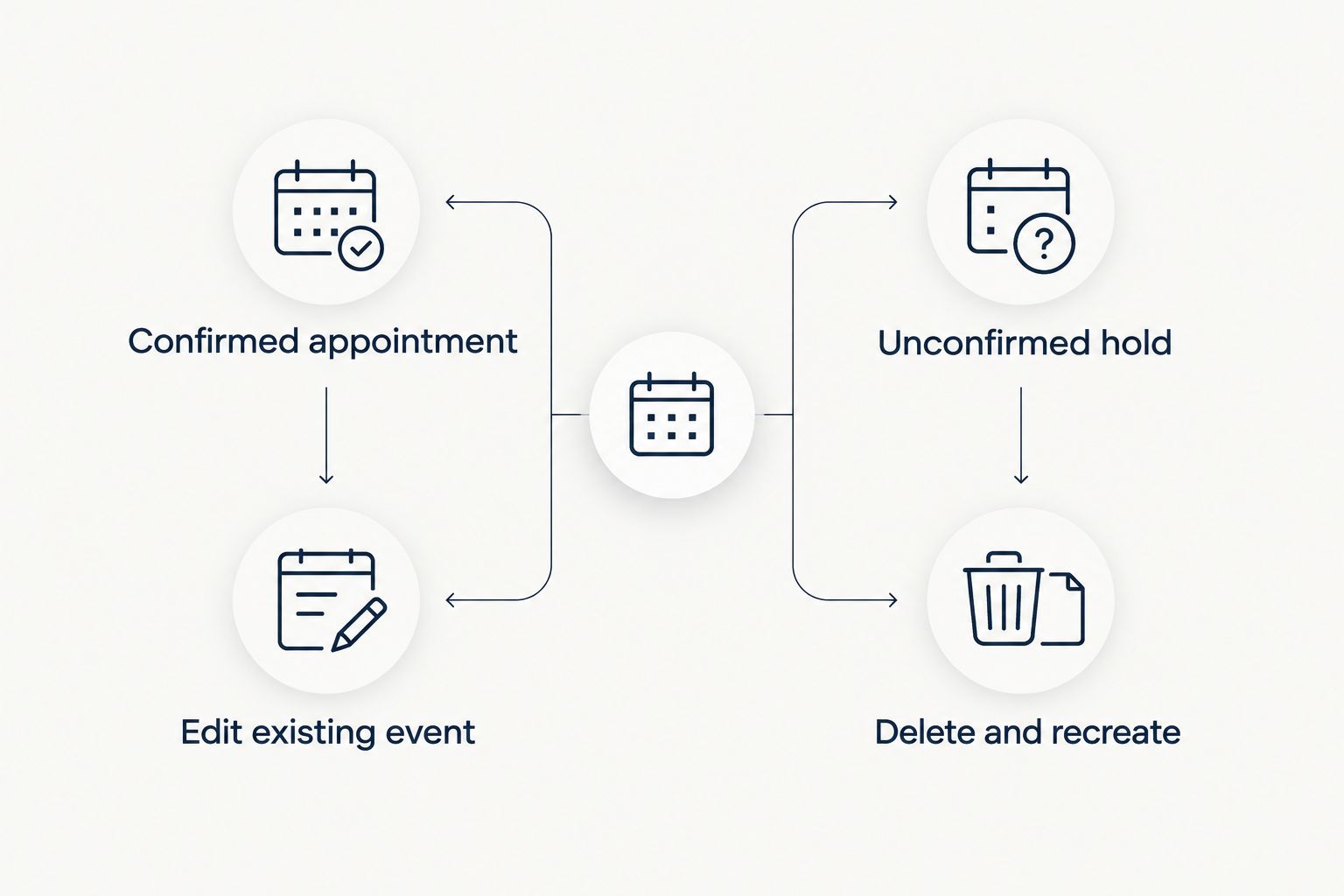
Choose the handling method that fits the booking state:
| Handling method | Best for | Advantage | Limitation |
|---|---|---|---|
| Edit the existing calendar event | A confirmed appointment being rescheduled | Retains the existing event and booking context | Requires provider agreement and a manual calendar update |
| Delete and recreate an internal hold | An unconfirmed window that needs replacement | Lets the script apply the new spreadsheet dates | Requires checking that the old hold is deleted before clearing its identifier |
For an unconfirmed hold, delete the original calendar event first. Update the row’s dates, clear Event ID, and run the function again. Do not clear the identifier while leaving the original event in place.
For a confirmed appointment, contact the provider before changing the calendar. Then update the existing event and the spreadsheet dates together, retaining Event ID.
In your 2026 tracker, use Workflow state to distinguish a proposed change from an accepted change. A revised lease date should prompt review, not silently rewrite a cleaning appointment.
Troubleshooting
No calendar hold appears
Check Workflow state first. Confirm that Vacant confirmed is a checked checkbox, the lease has ended, and the cleaning window remains in the future. A future lease-end timestamp correctly prevents creation.
If the state does not change, inspect Executions in Apps Script. Confirm that the trigger uses scheduleMoveOutHolds and that the authorizing account still has access to the spreadsheet and calendar.
The hold has the wrong time
Check both time-zone settings and inspect the spreadsheet’s underlying timestamps. Correct the row, then follow the replacement procedure for an unconfirmed hold. Editing the sheet alone does not update an existing event.
The state says Review dates
One or more timestamp cells contains text, an empty value, or an invalid date. Re-enter the value as a spreadsheet date and time. Display formatting alone does not convert an arbitrary text string into a usable timestamp.
A duplicate hold appears
Look for duplicated rows or an Event ID that someone cleared. Also check for an execution failure between event creation and identifier storage. Delete the extra event and retain the identifier belonging to the intended hold.
The calendar hold exists, but nobody booked cleaning
That is a handoff failure, not a calendar failure. Assign a booking owner and keep the unconfirmed state visible until the provider accepts the appointment. Do not mark the task complete just because the automation created an event.
Customize your workflow
Start by assigning responsibility rather than adding more automation. Add optional tracking columns for a booking owner, repair clearance, and access verification; append them after the original seven columns so the script’s column positions remain unchanged.
For your 2026 turnover review, keep these decisions distinct:
- Vacancy approval: Is the property empty and accessible?
- Cleaning scope: What work has the provider agreed to perform?
- Booking confirmation: Has the provider accepted the window?
- Completion review: Has someone checked the property after cleaning?
Best Maids Ever offers standard, deep, move-in/out, and eco-friendly cleaning. Specify the service and requested tasks when arranging the appointment rather than assuming that a calendar label defines the work.
FAQ
How do I automate move-out cleaning after lease ends?
Use a lease tracker and a scheduled script to create an internal cleaning hold after the lease ends and vacancy is confirmed. Book the provider separately; this workflow does not confirm a cleaning appointment.
Does a lease ending mean the property is ready for cleaning?
No. Confirm that the property is empty and accessible before releasing a cleaning hold, and resolve any work that would obstruct cleaning.
Does this automatically book Best Maids Ever?
No. The script creates an internal Google Calendar hold, not a booking with Best Maids Ever. Arrange the appointment separately and update the hold after confirmation.
What happens if the tenant leaves late?
Leave Vacant confirmed unchecked so the script does not create a new hold. If an appointment already exists, contact the provider and agree on a revised window.
Will changing the spreadsheet move an existing appointment?
No. Rows with an Event ID are skipped. Update a confirmed appointment only after provider agreement, or delete and recreate an unconfirmed hold using the guide’s replacement procedure.
Can I use this for several rental properties?
Yes. Enter one turnover per row with its own property identifier, timestamps, and vacancy checkbox. Avoid duplicate rows for the same turnover.
Should I put a lockbox code in the calendar event?
No. Keep access credentials out of calendar titles and broadly shared tracker cells. Give authorized people the necessary instructions through a restricted channel.
One last thing
An empty calendar is easier to notice than a misleading confirmed-looking event. Keep the word HOLD in every unconfirmed cleaning entry, and remove it only after the provider accepts the appointment. That small distinction keeps your automation useful without pretending it has booked anything.