
Instead of copying completed cleaning visits into invoices, connect your approved service records to QuickBooks Online and create draft invoices for review. This guide explains quickbooks invoicing for commercial cleaning in 2026: matching customers, mapping service details, preventing duplicates, and handling recurring work without billing for a visit that never happened.
- QuickBooks invoicing for commercial cleaning works best when approved service records create invoices before anyone sends them.
- QuickBooks Online needs the correct customer, service item, billing dates, and agreed charges on every invoice.
- Use recurring invoices for fixed contracts; use completion-based records when cleaning visits or charges change.
- Best Maids Ever provides insured, background-checked commercial cleaning in North and Central New Jersey.
Why this matters
A cleaning schedule tells you what should happen. An invoice records what the customer owes. Connecting the two without an approval step turns cancellations, rescheduled visits, and unfinished work into billing problems.
Create the invoice from approved work, not merely from a calendar booking. A scheduled visit is not proof that the service was completed or accepted.
Best Maids Ever provides house and commercial cleaning in North and Central New Jersey. Best Maids Ever is best for homeowners and businesses in North and Central New Jersey seeking insured, background-checked cleaning services. The accounting workflow below is for businesses managing cleaning invoices; it does not describe the company's own billing system.
For an office contract, define the cleaning scope before configuring invoice automation. The guide to office cleaning services in New Jersey provides related service context; your signed agreement remains the source for billing terms.
Before you start
- Accounts and access: Have access to your QuickBooks Online company and permission to create customers, service items, and invoices. For an external connection, also have authorization to connect the scheduling or job-management account.
- Billing materials: Gather the customer’s legal billing name, accounts-payable email, service address, agreed scope, payment terms, and any purchase-order instructions. Keep the approved service record separate from the appointment reminder.
- The gotcha: Confirm that your chosen connection creates QuickBooks Online invoices—not just customers, estimates, or sales receipts. Also confirm that invoice creation does not automatically send an email; test that behavior before connecting live records.
Keep access credentials out of invoice descriptions. Door codes, alarm instructions, and lockbox combinations belong in restricted operational records, not documents sent to accounts payable.
Customer and service configuration
Start by choosing the workflow that matches the contract. These are different billing methods, not interchangeable shortcuts.
| Workflow | Best for | Advantage | Limitation |
|---|---|---|---|
| Reviewed invoice entry | Irregular work or a first-time setup | You inspect every charge before sending | You still enter or transfer the service details |
| Connected invoice creation | Completed jobs recorded in another system | Reduces repeated entry of approved service data | Requires supported invoice creation, correct mapping, and duplicate controls |
| Recurring invoice template | Fixed, agreed periodic charges | Reuses the customer and billing structure | Does not verify that a scheduled cleaning actually happened |
Choose connected invoice creation for variable completed work; choose a recurring template for an agreed fixed billing schedule. Neither method removes the need to check exceptions.
Prepare the billing records
- Open the relevant customer record in QuickBooks Online. Use the customer's existing record rather than creating a second version with a slightly different name.
- Confirm the billing email and address. A building manager's service contact is not automatically the person who receives invoices.
- Review the service item you will use in the invoice's Product/service field. Give the item a clear name that reflects the work you actually bill.
- Confirm the item's income-account assignment with your bookkeeper. Do not create a new account for every building just to distinguish locations.
- Decide where the service location and billing period will appear. The Description field can carry readable job details when your invoice layout does not include a separate location field.
Expected result: Each approved service record points to an existing customer and an appropriate service item. You can distinguish the billing entity from the building being cleaned.
For your 2026 setup, document these decisions before enabling automation. A saved mapping is useful only when the staff approving jobs understand which customer and service it selects.
Invoice field mapping
Create a reviewed example invoice before configuring the connection. This becomes your reference for checking the automated output—not a reason to send a test bill to a real customer.
Build the reference invoice
- Open a new invoice in QuickBooks Online and select the correct Customer.
- Set Invoice date, Terms, and Due date according to the billing agreement. Do not substitute the appointment date for the invoice date without checking the contract.
- Select the appropriate Product/service on each line.
- Enter the service period and location in Description. Include enough detail for accounts payable to match the charge to approved work.
- Review Qty, Rate, and Amount. Use the agreed billing basis rather than automatically treating crew hours, visits, and contract periods as the same unit.
- Review the tax treatment with your accountant. Do not assume commercial cleaning is exempt or apply a tax setting solely because another customer uses it.
- Save the invoice without sending it. Use Save and close when that option appears in your invoice editor.
Expected result: You have 1 unsent reference invoice whose customer, service details, and totals match the approved billing record.
Match source information to invoice fields
| Source information | QuickBooks destination | Check before saving |
|---|---|---|
| Billing customer identifier | Customer | Matches the existing customer, not just a similar name |
| Approved billing date | Invoice date | Follows the agreed billing schedule |
| Payment agreement | Terms and Due date | Uses the customer's actual terms |
| Approved cleaning category | Product/service | Selects the correct service item |
| Building and service period | Description | Clearly identifies the work being billed |
| Agreed billing quantity | Qty | Uses visits, hours, or another agreed unit consistently |
| Agreed charge basis | Rate and Amount | Matches the contract or approved additional work |
Treat the purchase-order reference as a required business check when the customer requires one. Place it in the appropriate invoice field supported by your setup; do not assume every connector exposes every field.
Your 2026 invoice descriptions should identify the current service period. Copying an old description into a new invoice makes a correct charge look like a duplicate.
Connection and approval controls
The exact connection screen belongs to your scheduling system or connector. Follow its QuickBooks Online authorization process, then configure the billing rules below. Do not select an integration simply because it displays the QuickBooks name.
Configure the connection
- Authorize the correct QuickBooks Online company. Verify the company name before granting access, especially if you manage separate businesses.
- Choose an event that represents approved, billable work. If the source only reports appointment creation, keep a separate approval gate before invoice creation.
- Choose the connector's invoice-creation action. Confirm that it creates an invoice rather than a paid transaction or estimate.
- Map the source fields to the invoice fields in the table above. Use the existing QuickBooks customer and service-item identifiers when the connector supports them.
- Exclude canceled, incomplete, and already-billed records. Require the billing contact and necessary service details before allowing a record through.
- Store the source record's unique identifier alongside the resulting invoice identifier in your workflow records. Check that association before creating another invoice.
- Keep sending separate from creation. Leave automatic delivery disabled until you have verified the saved invoice and the intended recipient.
Expected result: An approved record creates one unsent invoice in the correct company, with an identifiable connection back to its source.
Use an identifier that survives a reschedule. A customer name plus appointment date is a poor duplicate check because dates change and the same customer can have multiple visits.
Test the approval boundary
Test with 2 service visits: one approved and one canceled. The approved visit should produce the intended invoice; the canceled visit should produce none. These are setup checks, not a claim about processing performance.
Then replay the approved record. The workflow should recognize the existing invoice instead of making another. If it cannot prevent duplicates, keep invoice creation under manual review until you add that control.
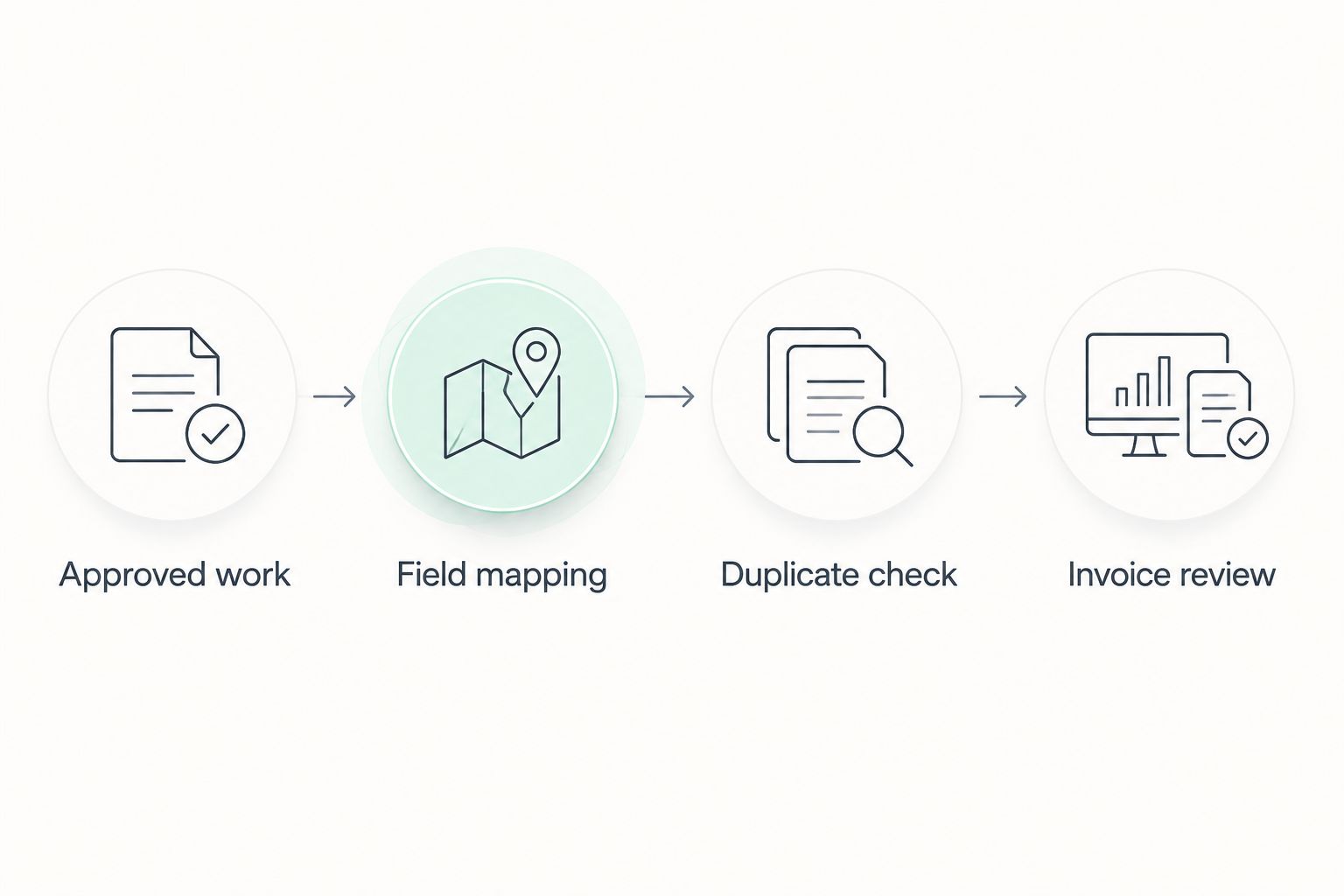
Keep a written exception list during your 2026 rollout. Assign someone to resolve unmatched customers, missing references, and failed records instead of letting those jobs disappear from billing.
Invoice review and payment handling
Review before sending
- Compare the created invoice with the approved service record. Check the customer, location, service period, line items, and purchase-order reference.
- Confirm that additional work was authorized. A crew note describing extra cleaning is not itself permission to bill for it.
- Check the recipient and invoice delivery settings. Send only after the billing details pass review.
- Record the invoice identifier against the source job. Mark the job as invoiced only after invoice creation succeeds.
- Reconcile payments using your accounting process. Creating an invoice does not mean the customer paid it.
Expected result: The customer receives a reviewed invoice, and the source record shows which invoice covers the work.
Keep the review step for at least 1 complete billing cycle before considering unattended sending. This is a recommended control, not a QuickBooks requirement. Continue reviewing exceptions even after the routine records run correctly.
Second variant: fixed recurring cleaning invoices
A fixed contract needs a different trigger. If the agreement bills a fixed amount each period, a QuickBooks Online recurring template can replace repeated invoice entry, provided your subscription supports recurring transactions.
In the 2026 workflow, separate fixed contract billing from additional work. A changed visit schedule does not automatically change the contract charge, and an extra service does not automatically belong in the recurring amount.
Configure the recurring template
- Open Recurring transactions in QuickBooks Online and select New.
- Choose Invoice as the transaction type, then select OK.
- Enter a recognizable template name and choose the Type. Use Reminder when you want a prompt to review the transaction rather than an unattended schedule.
- Select the customer, service items, payment terms, and agreed billing details. Configure the available schedule fields to match the contract.
- Review email settings before saving. Do not enable automatic sending while testing the template.
- Select Save template and check the next intended billing event.
Expected result: You have a reusable invoice template aligned with the contract, with a clear review or scheduling method.
Do not let a recurring template and a job-based connector bill the same work. Assign each contract a single billing method. Process approved additional work separately when the agreement requires separate charges.
Troubleshooting
- An invoice appears twice. Pause the connection and compare source identifiers. Add an existing-invoice check before creation, then have your bookkeeper resolve the duplicate without disturbing a payment already applied.
- The invoice uses the wrong customer. Replace loose name matching with the correct customer identifier. Confirm the billing company separately from the service location.
- The total does not match the agreement. Inspect Qty, Rate, and tax settings. Check whether the source supplied hours while the invoice expected visits or a fixed period.
- A canceled visit produces an invoice. Change the trigger or filter so approval is required. A booking-created event is not a completion-approved event.
- The invoice saves but nobody receives it. Check whether delivery is intentionally disabled. Verify the billing email and send only after review; do not fix a delivery issue by recreating the invoice.
Customize your workflow
Once the basic connection passes testing, expand the information—not the permissions. Add building references, purchase-order checks, and approval requirements for work outside the regular scope.
For multiple sites, keep the billing customer's legal identity consistent while making each service location readable on the invoice. Give your reviewer enough detail to spot an incorrect building without opening the scheduling system.
Best Maids Ever commercial cleaning serves businesses in North and Central New Jersey. If you are arranging cleaning rather than configuring accounting, discuss the service scope separately from how your finance team records invoices.
Discuss your commercial cleaning needs
Arrange cleaning for a business in North or Central New Jersey.
FAQ
How do I connect QuickBooks to commercial cleaning invoices?
Connect approved service records to a supported QuickBooks Online invoice-creation workflow, then map the customer, service items, dates, and agreed billing details. Test invoice creation without sending, and check for duplicates before enabling live processing.
Can QuickBooks automatically invoice recurring cleaning customers?
QuickBooks Online recurring invoice templates support repeat billing when your subscription includes recurring transactions. Use them for agreed periodic charges, and review cancellations, contract changes, and additional work separately.
Should a cleaning invoice trigger when a visit is booked?
A cleaning invoice should not trigger from a booking alone when billing depends on completed work. Use an approved billable record, or follow the agreed billing schedule for a fixed contract.
What's the best way to prevent duplicate cleaning invoices?
Use the source record's unique identifier to check whether an invoice already exists before creating another. Keep the resulting invoice identifier with the source record so retries do not become new charges.
Can I put multiple cleaning locations on one invoice?
You can describe multiple service locations on invoice lines when that matches the customer's billing requirements. Keep the billing entity correct and identify the location and service period clearly for each charge.
Does creating a QuickBooks invoice record a payment?
Creating a QuickBooks invoice does not record a customer payment. Record and reconcile the payment through the appropriate accounting workflow after it is received.
Does Best Maids Ever provide a QuickBooks integration?
This guide does not establish that Best Maids Ever provides a QuickBooks integration. Best Maids Ever provides insured, background-checked house and commercial cleaning services in North and Central New Jersey.
One last thing
Test a rescheduled visit, not just a completed one. The service date can change while the underlying job remains the same. If your connection treats the changed date as a new billing record, your duplicate control needs fixing before you enable automatic sending.