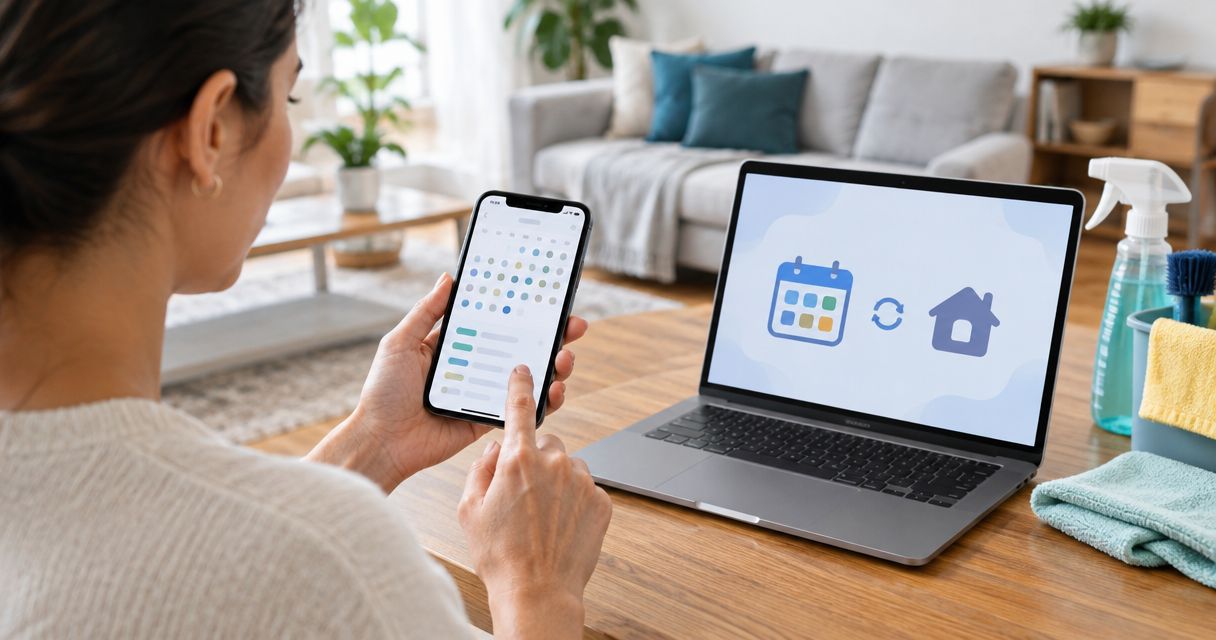
Instead of manually reminding everyone about cleaning day, connect your house cleaning schedule to a shared Google Calendar with recurring events and notifications. This 2026 guide shows you how to keep household reminders aligned across devices without confusing a calendar entry with a confirmed cleaning appointment.
- For google calendar sync house cleaning schedule setup, use a shared Google Calendar with recurring events and notifications.
- Google Calendar coordinates household reminders; adding an event does not book or reschedule a cleaning service.
- Best Maids Ever provides insured, background-checked house cleaning in North and Central New Jersey.
- Keep one appointment event, share appropriate access, and update individual visits when confirmed dates change.
Why this matters
A cleaning appointment affects more than your calendar. Someone needs to clear the kitchen counters, arrange pet care, and make sure the cleaner can enter. Separate reminders leave room for conflicting dates.
Best Maids Ever is best for homeowners seeking insured, background-checked house cleaning in North and Central New Jersey. You can use Best Maids Ever for the cleaning service and Google Calendar for household coordination; these are separate functions.
The setup below uses Google Calendar's own calendar-sharing and repeating-event features. It does not require a cleaning-company integration. Your calendar becomes the household reference, while the provider's appointment confirmation remains the authority on when cleaning happens.
Before you start
- Have the right access. Use a Google account, Google Calendar in a desktop browser, and the email addresses of household members who need the schedule. Calendar creation and sharing are easier to configure on desktop.
- Gather confirmed appointment details. Have the cleaning date, agreed arrival time or window, address, and repeat pattern ready. Keep access instructions separate from sensitive information such as alarm codes.
- Check the sharing restriction first. A work or school account can have administrator-controlled sharing limits. Also, sharing a calendar does not give your cleaning provider permission to change its appointment schedule.
For this 2026 setup, start with a dedicated calendar rather than adding cleaning visits to whichever calendar happens to be open. That keeps household events separate from your work schedule and makes sharing permissions easier to control.
Choose your calendar workflow
Use a shared calendar when household members need the same cleaning schedule. Use an event invitation when another person only needs a particular appointment. These workflows solve different coordination problems.
| Workflow | Best for | Advantage | Limitation |
|---|---|---|---|
| Shared cleaning calendar | Households coordinating recurring visits | Members can view the same calendar and its updates | Calendar access requires permission management |
| Individual event invitations | A person who needs one cleaning appointment | Shares that event without sharing the whole calendar | Guests must handle invitations, and their notification settings can differ |
Neither option creates a service booking. If you book Best Maids Ever house cleaning, record the confirmed appointment afterward rather than assuming a repeating calendar event reserves future visits.
Choose one main household calendar. Maintaining separate copies for each person turns every changed appointment into a small administrative project. The calendar should remove chores, not acquire its own chore chart.
Cleaning calendar setup
- Create the calendar. In Google Calendar on desktop, find Other calendars, click the +, and select Create new calendar. Enter a clear name, such as Household Cleaning, and a description explaining that it tracks confirmed visits and preparation reminders.
- Check the time zone. Choose the time zone that matches the property before clicking Create calendar. For a New Jersey home, use the applicable Eastern Time setting rather than a fixed offset that ignores daylight saving changes.
- Find the calendar. Return to the main calendar view and locate Household Cleaning under My calendars. Keep its checkbox selected so its events appear alongside your other commitments.
- Check the calendar on your phone. Open the Google Calendar app with the same Google account and make sure Household Cleaning is selected in the calendar list. Refresh the calendar view if the new calendar has not appeared yet.
Expected result: Household Cleaning appears in your desktop calendar list and on your phone under the same account. No appointments exist yet; you have created the container that will hold them.
Give the calendar a purpose, not a year-dependent name. Household Cleaning works better than Cleaning 2026 if you intend to keep the same shared calendar next year. Reserve year references for planning notes, not the structure itself.
Appointment and recurrence settings
- Create the appointment. Click Create, choose Event, and use a descriptive title such as House cleaning — confirmed visit. Select Household Cleaning in the calendar dropdown so the event lands in the calendar you intend to share.
- Enter the confirmed timing. Set the date and start time from the appointment confirmation. If the provider gives an arrival window rather than a precise start, put that window in the description and make clear what your calendar block represents.
- Add useful context. Enter the property address in Location. In Description, record the agreed service type, household preparation tasks, and where authorized people can find access instructions. Do not put alarm codes or lockbox combinations in the event.
- Set the repeat pattern. Click Does not repeat. Choose a listed pattern or Custom; for an agreed every-other-week schedule, set the interval to 2 weeks, select the appropriate weekday, and click Done.
- Choose an end condition. In the custom recurrence settings, use the ending option that matches your actual arrangement. Avoid an endless repeating series when you only have a limited set of confirmed visits.
- Save and inspect. Click Save, then inspect the next occurrence. Check its weekday, date, calendar, and description against the confirmed schedule.
Expected result: The confirmed cleaning appointment appears on Household Cleaning, with future occurrences matching the repeat pattern you selected.
A repeating event is a planning pattern, not proof that every future visit is booked. If your provider confirms appointments individually, label future entries as planned until they are confirmed. This distinction matters especially around holidays and one-off deep cleans.
For your 2026 schedule, record any agreed holiday exceptions directly in the affected events. Do not expect Google Calendar to know when your cleaning provider changes its operating schedule.
Sharing and reminder settings
- Open calendar permissions. In the left sidebar, hover over Household Cleaning, open More, and select Settings and sharing.
- Invite household members. Find Shared with, click Add people and groups, and enter each person's email address. Choose See all event details for someone who needs to read the schedule, or Make changes to events for a trusted person who will maintain it. Click Send.
- Have each person accept access. Ask recipients to open the sharing email and add the calendar. They should then select Household Cleaning in their own calendar list and check that the next visit is visible.
- Configure your reminders. Open the appointment, click Edit event, and use Add notification. As a suggested starting point, set a preparation reminder 1 day before and a final reminder 30 minutes before the calendar start time.
- Check each person's settings. Ask household members to configure their own notifications. Calendar sharing does not guarantee identical alerts, and phone notification permissions still control whether an alert is displayed.
Expected result: Household members can see the same appointment, while each person receives reminders suited to their responsibilities.
The suggested reminder intervals are choices, not cleaning-service requirements. A day-ahead alert suits clearing surfaces; a short reminder suits a final access check. Change both if your household needs more preparation time.
Give editing rights to people who actually maintain the schedule. Everyone else can read the details without accidentally changing a visit. Never make a household cleaning calendar public just to simplify sharing.
Appointment changes: update one visit or the series
A workable google calendar sync house cleaning schedule needs a clear update rule: confirm the service change first, then edit the calendar. Calendar edits synchronize the household record; they do not instruct a provider to move an appointment.
- Confirm the new appointment. Contact the cleaning provider through its normal booking or communication process. Wait for the revised date or arrival window before replacing a confirmed event.
- Edit the affected occurrence. Open that appointment and click Edit event. Change the date, timing, or description, then click Save.
- Choose the correct scope. For a one-time change, select This event. For an agreed ongoing schedule change, select This and following events when offered. Use All events only when the entire series needs the same change.
- Verify the next visit. Check both the edited appointment and the following occurrence. A one-off reschedule should not shift the next regular cleaning unless that was agreed.
Expected result: The changed visit appears at its confirmed time, while unaffected appointments keep their original pattern.
This is the adjacent workflow to recurring setup: maintain the same shared calendar whenever an appointment changes. You do not need another calendar or another automation to handle exceptions.
For the rest of your 2026 cleaning plan, appoint one household member to maintain confirmed dates. Shared access works better when responsibility is clear. Anyone can report a conflict; one person should resolve it with the provider and update the event.
Troubleshooting
The cleaning calendar appears on desktop but not on your phone
Check that the Google Calendar app uses the same Google account as the desktop browser. Then open the app's calendar list and select Household Cleaning. If you use another calendar app, verify that it includes this particular Google calendar rather than only your account's primary calendar.
A household member cannot see the appointments
Open Settings and sharing and check the email address and permission level. Ask the recipient to accept the sharing email and select the calendar in their own view. If a work or school account blocks sharing, use a permitted account rather than repeatedly resending the invitation.
The appointment is visible, but the reminder never arrives
Check the event's notification settings and the Google Calendar app's notification permission on the device. Ask each household member to inspect their own settings. Seeing a shared event and receiving a device alert are separate things.
A one-time change moved more visits than intended
Review whether the edit applied to This event, This and following events, or All events. Correct the affected dates against the provider's confirmations. Before saving another series edit, read the scope selection carefully; that small choice controls a lot of calendar squares.
The calendar shows cleaning, but the provider has no appointment
Treat the provider's confirmation as the booking record. A manually created Google Calendar event is only your household entry. Confirm the service appointment, then correct or remove any calendar entries that suggest an unconfirmed visit is booked.
Customize your workflow
Keep appointment events and preparation tasks distinct. The appointment answers when cleaning is scheduled; a separate preparation event tells your household when to clear surfaces, secure pets, or arrange entry. If those activities happen at different times, they deserve different reminders.
For a home with controlled entry, read the guide to connecting a smart lock to your cleaning schedule. Coordinate access with the confirmed appointment instead of treating every recurring calendar entry as authorization to enter.
Best Maids Ever offers standard, deep, move-in/out, and eco-friendly house cleaning. Record the agreed service type in each event so the household does not mistake a one-off deep clean for the usual visit.
Before adding more complexity to your 2026 workflow, check whether everyone can answer three questions: when is the confirmed visit, what needs preparing, and who handles access? If those answers are clear, the calendar is doing its job.
FAQ
How do I sync my house cleaning schedule with Google Calendar?
Create a dedicated Google Calendar, add confirmed cleaning appointments, and share it with household members. Use recurring events for an agreed repeat pattern and configure notifications on each person's account.
Does adding a cleaning event to Google Calendar book the cleaner?
No, a Google Calendar event does not book a cleaning service. Confirm the appointment with the provider first, then record the agreed date and arrival details in your calendar.
Can I automatically sync Best Maids Ever bookings with Google Calendar?
This guide uses Google Calendar's shared calendars and repeating events, not an automatic Best Maids Ever booking connection. Keep calendar entries aligned with appointment confirmations and update them after confirmed changes.
How do I schedule cleaning every other week?
Open the event's repeat menu, choose Custom, and set the interval to 2 weeks on the agreed weekday. Check the next occurrence before relying on the repeating series.
Can my partner see the cleaning schedule without changing it?
Yes, share the calendar with See all event details permission. That allows the recipient to read appointment information without granting permission to edit events.
Will everyone get the same cleaning reminders?
Not necessarily; each person should check their own calendar notifications and device permissions. Sharing the appointment does not guarantee identical alerts across accounts or phones.
How do I move just one cleaning appointment?
Confirm the new appointment with your cleaning provider, edit that occurrence, and select This event when saving. Check the next regular visit to ensure the rest of the series stayed unchanged.
What should I check when reviewing my cleaning calendar in 2026?
Check confirmed dates, recurrence exceptions, sharing permissions, and notification settings. Remove outdated access details and make sure planned visits are not labeled as confirmed appointments.
One last thing
A clean calendar needs one source of truth, not more reminders. Keep the provider's confirmation as the authority for the appointment and the shared calendar as the household's coordination record. If those disagree, resolve the appointment first and fix the calendar second.